Connect Wallet to Claude
via Connectors (MCP)
This guide walks you through connecting your Wallet account to Claude via a custom MCP connector, authenticated with your Wallet email. Follow the steps below in order.
Before you begin
- Wallet MCP is not yet listed in the Claude Connectors Directory — our application is in review by Anthropic, so you’ll add it as a custom connector.
- A Claude Pro, Max, Team, or Enterprise plan is required:
- Pro & Max: you can add a custom connector yourself.
- Team & Enterprise: an Owner adds the connector for the organization (Organization Settings > Connectors) before members can enable it.
Open Claude’s Connectors
Open the Claude Connectors page and click "Add custom connector". claude.ai/customize/connectors
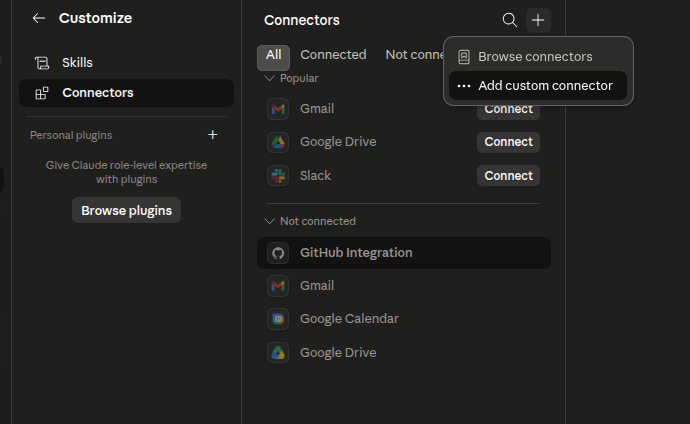
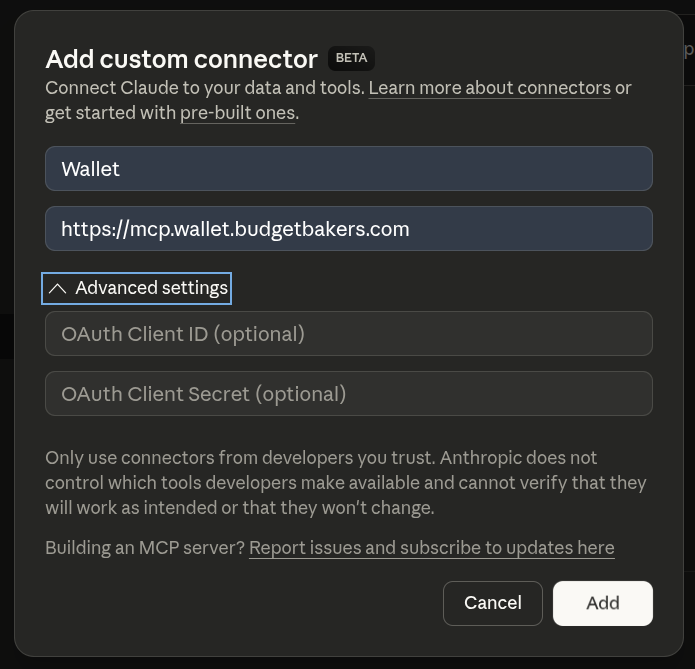
Add a Custom Connector
In the "Add custom connector" dialog, fill in the details and submit:
- Name:
Wallet - Remote MCP server URL:
https://mcp.wallet.budgetbakers.com
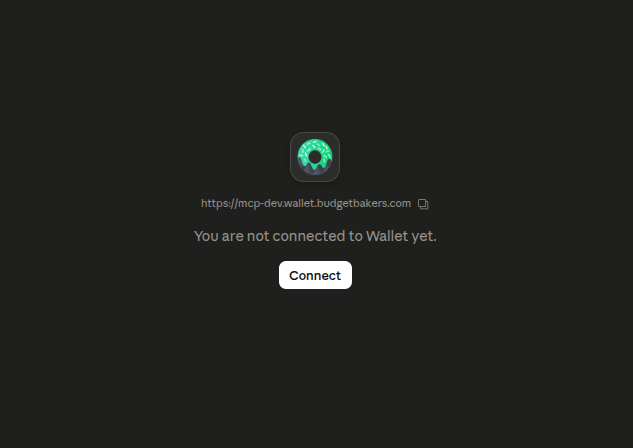
Click Connect
Back on the connectors list, find Wallet and click "Connect" to start authentication.
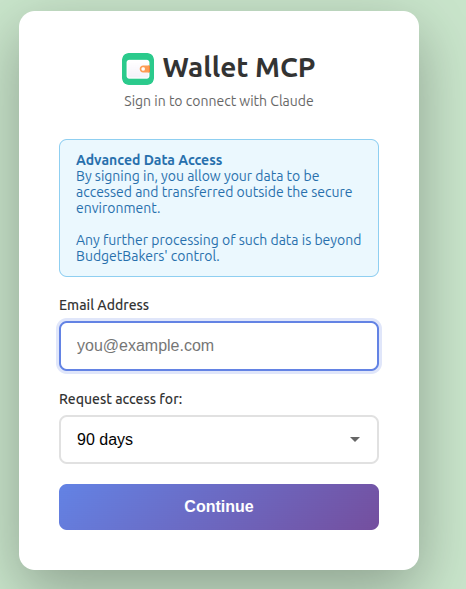
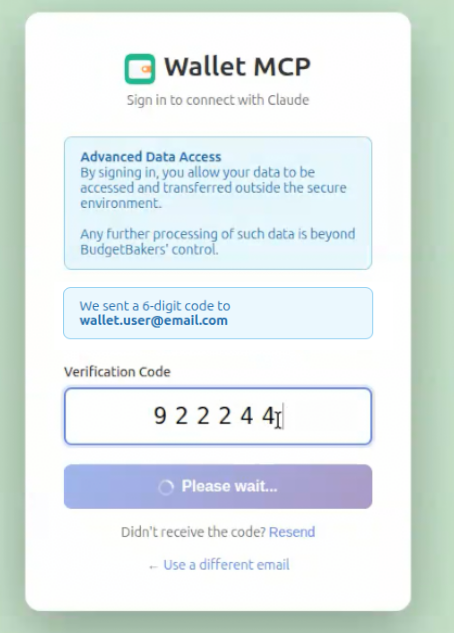
Enter Your Wallet Email
You’ll be redirected to the Wallet MCP login page. Enter the email address associated with your Wallet account and optionally set the duration of the MCP connection.
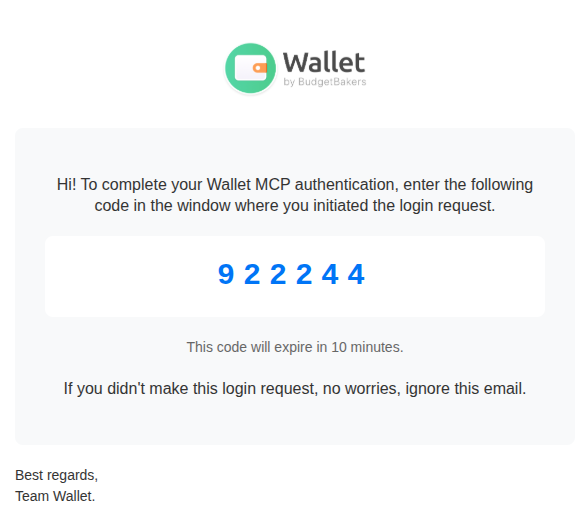
Check Your Email
Your email inbox will receive an authorization code from Wallet.
Submit the Authorization Code
Enter the authorization code from your email on the Wallet login page.
Review Permissions & Redirect
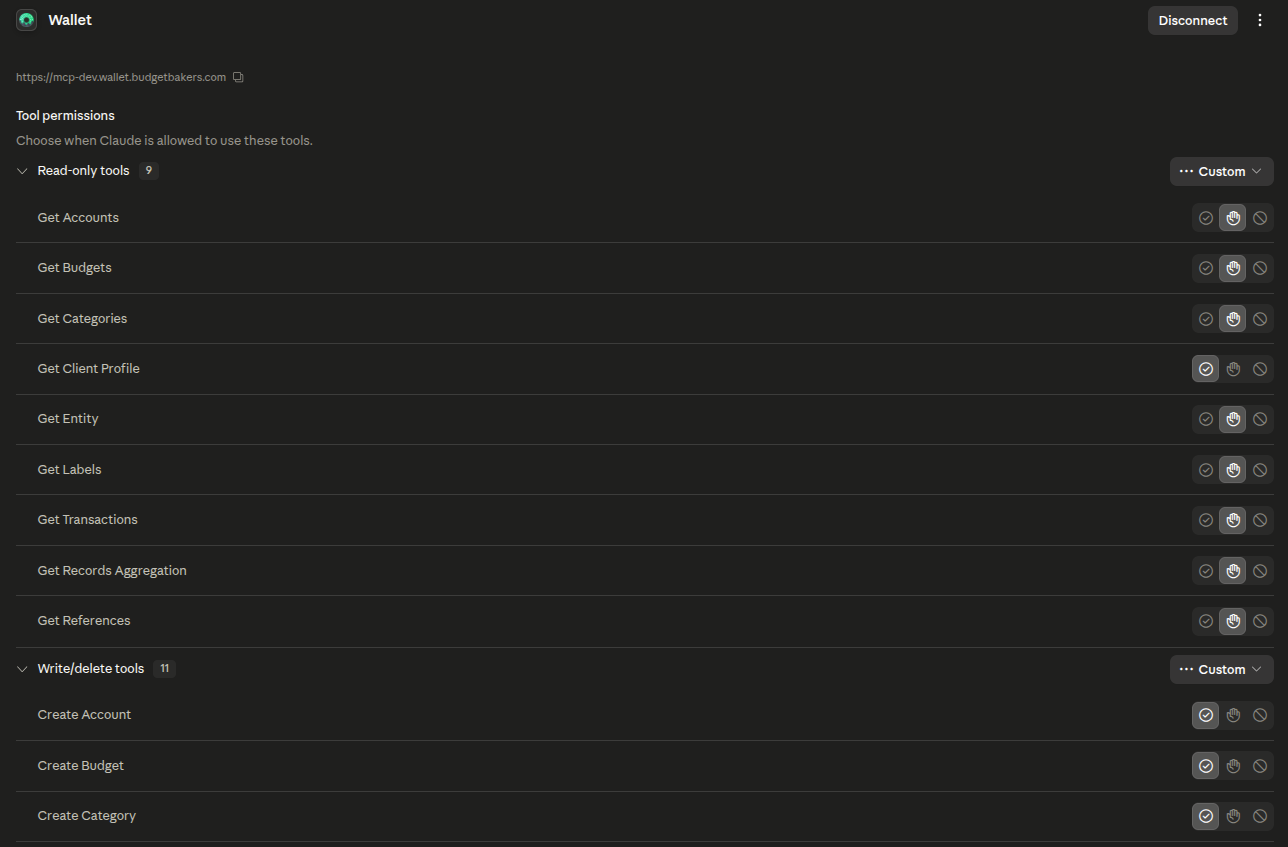
After successful authentication, you’ll be automatically redirected back to Claude. The Wallet connector is now active. Be sure to review the permissions that you want to grant on each tool.
Start Asking Questions
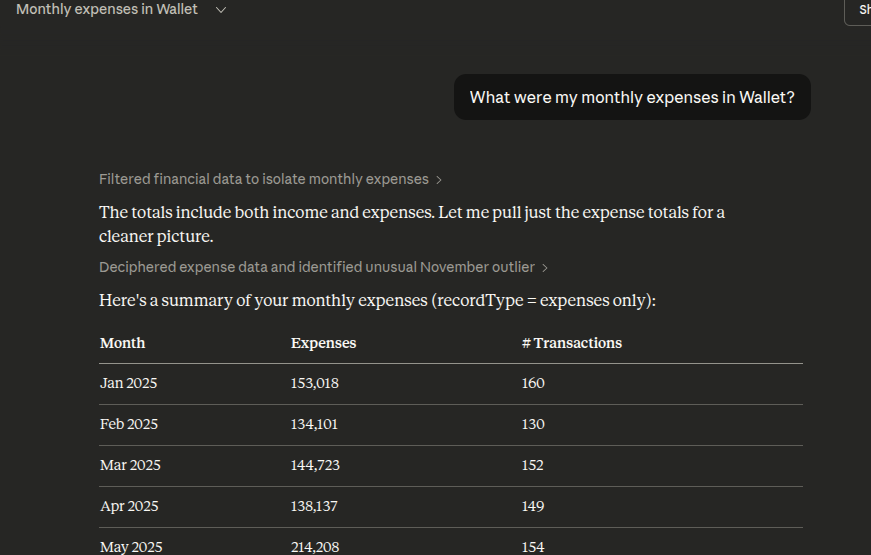
You’re all set! Start a new conversation and ask Claude about your finances. Try questions like:
- “What were my monthly expenses in Wallet?”
- “Show me my spending by category this month”
- “Am I on track with my budgets?”
Claude Web vs Claude Desktop & Code
Claude Web (claude.ai) uses Connectors with email-based authentication — no manual token management. Claude Desktop and Claude Code use an access token that you paste into a config file.
Claude Web (Connectors)
- Add connector in settings
- Login with Wallet email
- Verify with email code
- Automatic token management
Claude Desktop & Code (access token)
- Generate token in Wallet → Settings → MCP
- Paste into config file or CLI
- Native streamable-http transport
Explore More Integrations
Wallet MCP also works with ChatGPT, Claude Desktop, Claude Code, and other MCP-compatible clients.
View All MCP Setup Guides